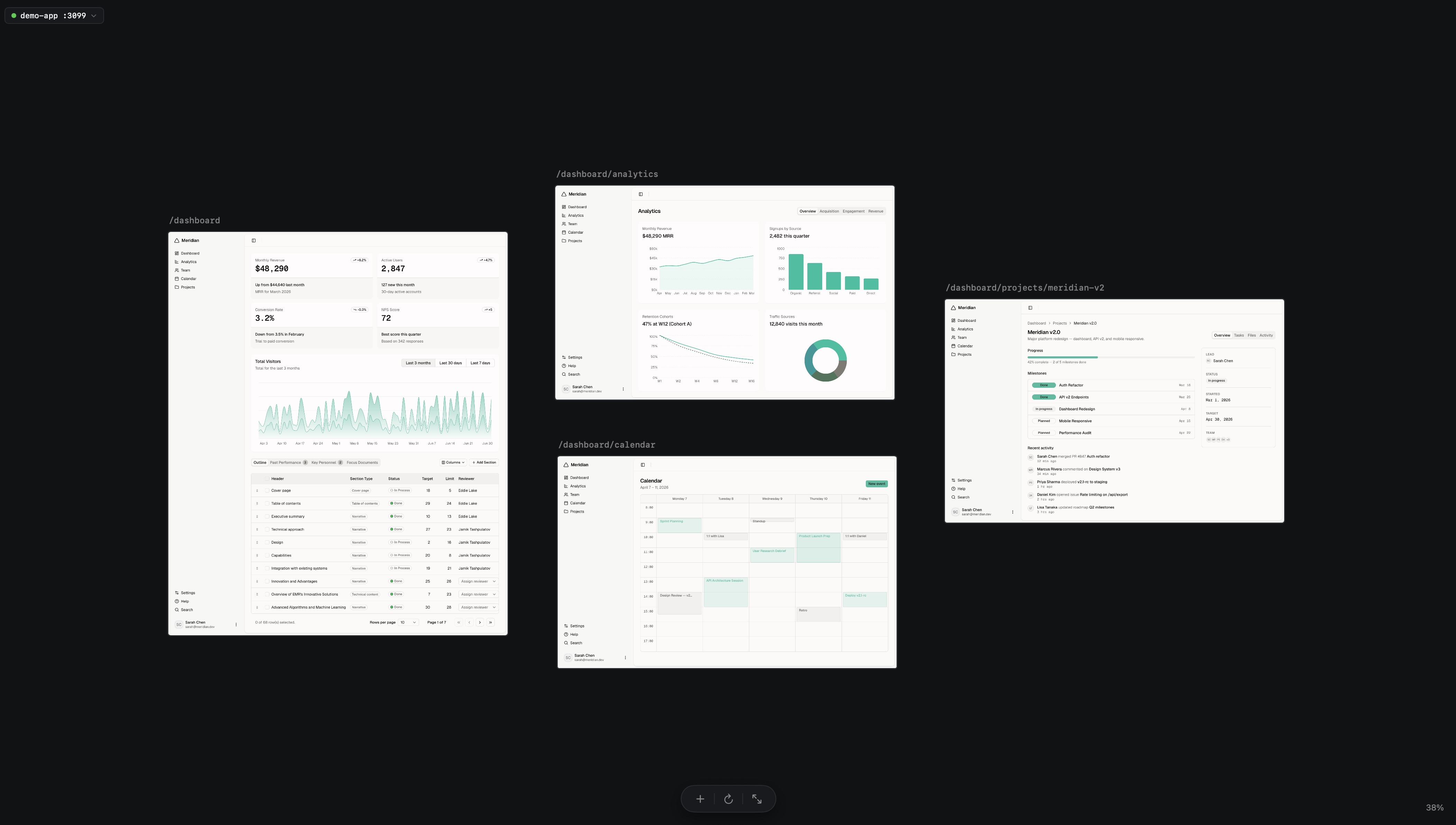
Skip Figma.
Design on your running app.
Stop drawing mockups. Prompt your agent to build; review every route live on one canvas.
Free and open source. For macOS 14 and later.
Official Mac download: 0.6.2 (10). The source includes later changes.
Any AI Agent
Claude Code, Cursor, Conductor — drive the canvas with MCP
Your agent drives the canvas from your editor. Claude Code, Cursor, Codex, Conductor — use MCP to add pages and capture screenshots from your terminal. Capabilities vary by app and bridge version.





Multi-Viewport
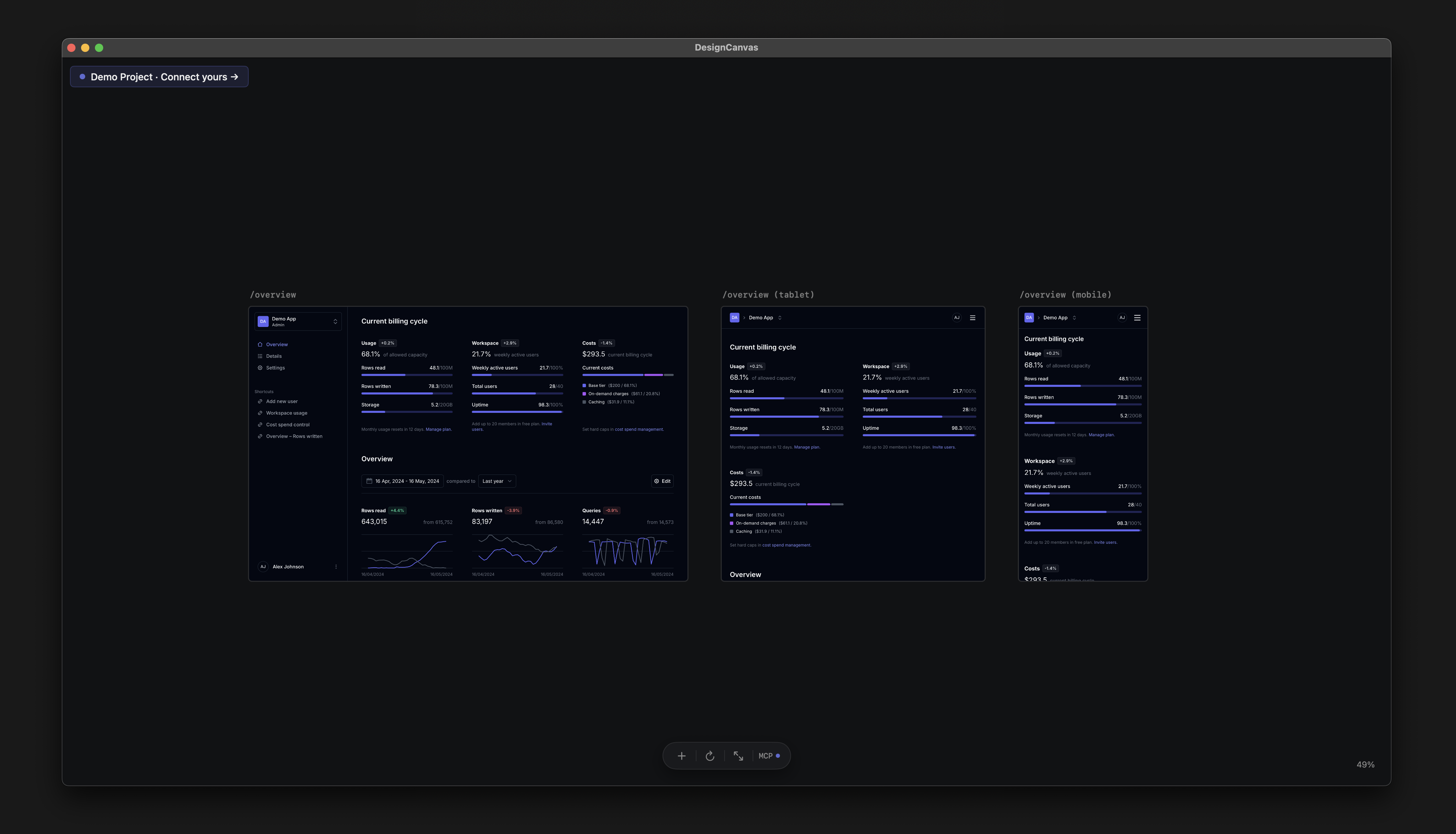
Desktop, tablet, mobile — side-by-side
Render the same screen across every viewport at once. Catch the responsive break the AI missed before you ship.
I built Design Canvas because I wanted a Figma-like infinite canvas for the apps I'm building. One view to visually iterate, compare every screen, and design and code faster with AI — without leaving my editor.

Agent Control
Your AI agent controls the canvas.
Claude Code, Cursor, Conductor — any MCP-compatible agent drives the canvas through MCP. List pages, add routes and capture screenshots.
Example MCP workflow
$ npx design-canvas-mcp

> Tell Claude: "Add /settings and /billing to the canvas"

✔ list_routes        → 12 routes available
✔ add_route          → /settings at (1200, 400)
✔ add_route          → /billing  at (1600, 400)
✔ capture_canvas     → screenshot saved
Capabilities depend on your app and MCP versions. Check the repository for current source support; the Mac download may differ.
How it works
See the canvas update as your agent changes the code
Build your app
With any tools — Cursor, Claude Code, Bolt, your IDE.
Run it locally
Start your dev server. Any framework, any port.
Open Design Canvas
Every page appears as a frame on one infinite canvas.
Your AI agent controls the canvasvia MCP
Add routes, capture screenshots, compare viewports — all from Claude Code or Cursor.
Or do it all directly in the app.
Comparison
Design Canvas works alongside every tool you already use.
| Tool | What it does | Where Design Canvas fits |
|---|---|---|
| Locofy, Anima, Visual Copilot | Convert Figma to code (one route at a time) | DC renders all routes at once for review |
| Cursor, Claude Code, Conductor | AI-generate the code from prompts or Figma | DC is the visual review layer for what they built |
| Figma Dev Mode / Figma MCP | Handoff hints and component props | DC shows the actual running app, not spec |
| Polypane, Sizzy, Responsively | Responsive testing (one page, many viewports) | DC is route comparison (all pages, one canvas) |
Tool-agnostic. Always complementary. Never a lock-in.
FAQ
Questions we hear a lot
Does this convert Figma to code?
No. It's the review layer. Use Locofy, Anima, Cursor, Claude Code, or whatever you like — DC renders the output.What do I actually download?
A native Mac app (~15 MB, signed + notarised). Works offline once installed.How does DC connect to my dev server?
It auto-detects dev servers running on your machine. One click to connect.Will it work with my framework?
If your dev server renders HTML at routes — Next.js (App + Pages), Nuxt, SvelteKit, Remix, Astro, TanStack Router — yes.Do I need to install an MCP server or CLI?
No. The Mac app is standalone. MCP is optional for power users who want their agent to control the canvas.What happens when Pro launches?
You'll see an upgrade prompt. The free tier keeps working. No forced migration.
Ready to see your app?
Point Design Canvas at your dev server. Every page appears, live, on an infinite canvas.
Free and open source. For macOS 14 and later.
Official Mac download: 0.6.2 (10). The source includes later changes. See the changelog and repository for version details.