Skip Figma.
Design on your running app.
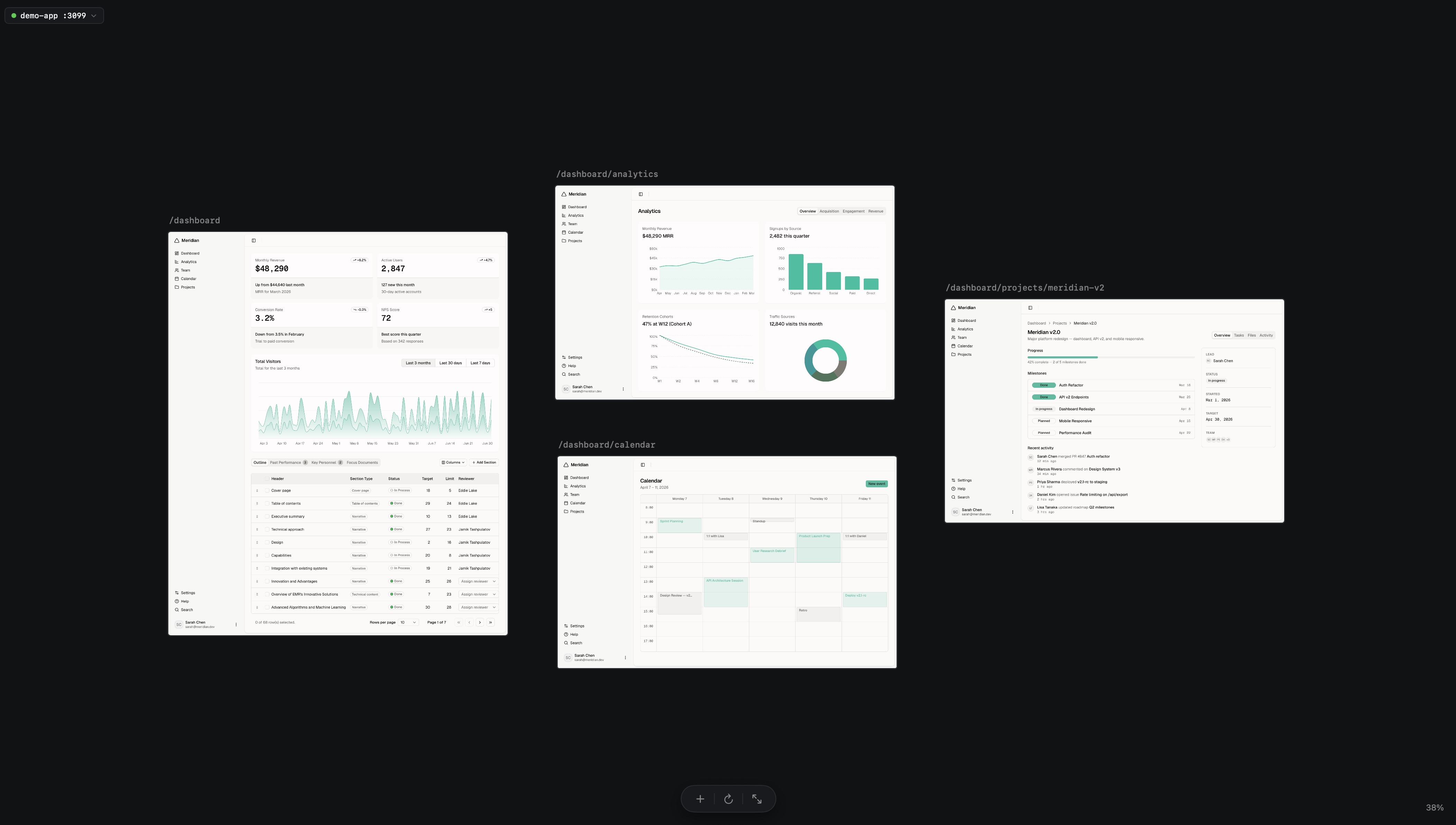
Stop drawing mockups. Prompt your agent to build; review every route live on one canvas.
Free and open source. For macOS 14 and later.
Official Mac download: 0.6.2 (10). The source includes later changes.
Any AI Agent
Claude Code, Cursor, Conductor — drive the canvas with MCP
Your agent drives the canvas from your editor. Claude Code, Cursor, Codex, Conductor — use MCP to add pages and capture screenshots from your terminal. Capabilities vary by app and bridge version.




Multi-Viewport
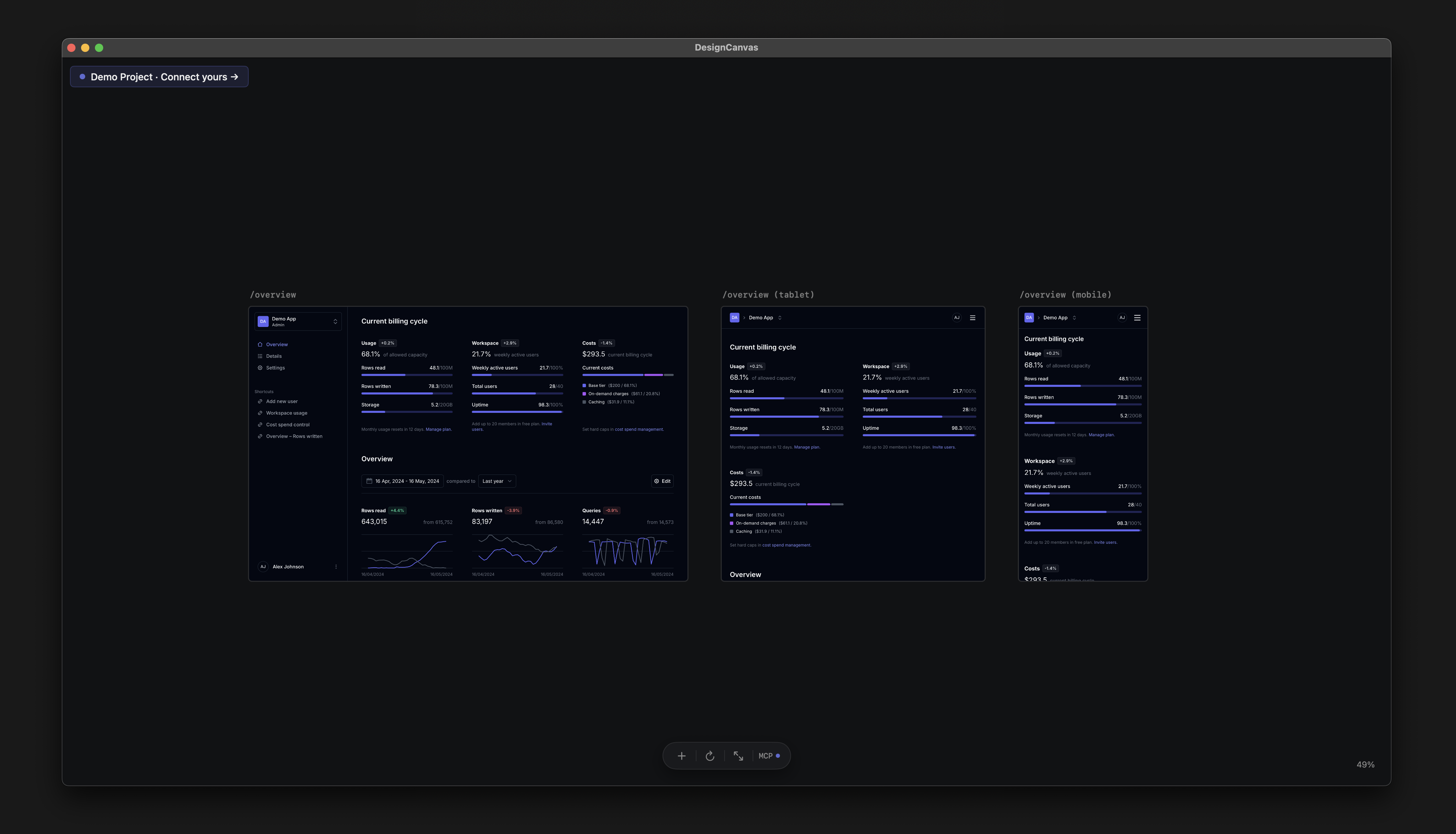
Desktop, tablet, mobile — side-by-side
Render the same screen across every viewport at once. Catch the responsive break the AI missed before you ship.
I built Design Canvas because I wanted a Figma-like infinite canvas for the apps I'm building. One view to visually iterate, compare every screen, and design and code faster with AI — without leaving my editor.

Agent Control
Your AI agent controls the canvas.
Claude Code, Cursor, Conductor — any MCP-compatible agent drives the canvas through MCP. List pages, add routes and capture screenshots.
Example MCP workflow
$ npx design-canvas-mcp

> Tell Claude: "Add /settings and /billing to the canvas"

✔ list_routes        → 12 routes available
✔ add_route          → /settings at (1200, 400)
✔ add_route          → /billing  at (1600, 400)
✔ capture_canvas     → screenshot saved
Capabilities depend on your app and MCP versions. Check the repository for current source support; the Mac download may differ.
How it works
See the canvas update as your agent changes the code
Build your app
With any tools — Cursor, Claude Code, Bolt, your IDE.
Run it locally
Start your dev server. Any framework, any port.
Open Design Canvas
Every page appears as a frame on one infinite canvas.
Your AI agent controls the canvasvia MCP
Add routes, capture screenshots, compare viewports — all from Claude Code or Cursor.
Or do it all directly in the app.
Ready to see your app?
Point Design Canvas at your dev server. Every page appears, live, on an infinite canvas.
Free and open source. For macOS 14 and later.
Official Mac download: 0.6.2 (10). The source includes later changes. See the changelog and repository for version details.